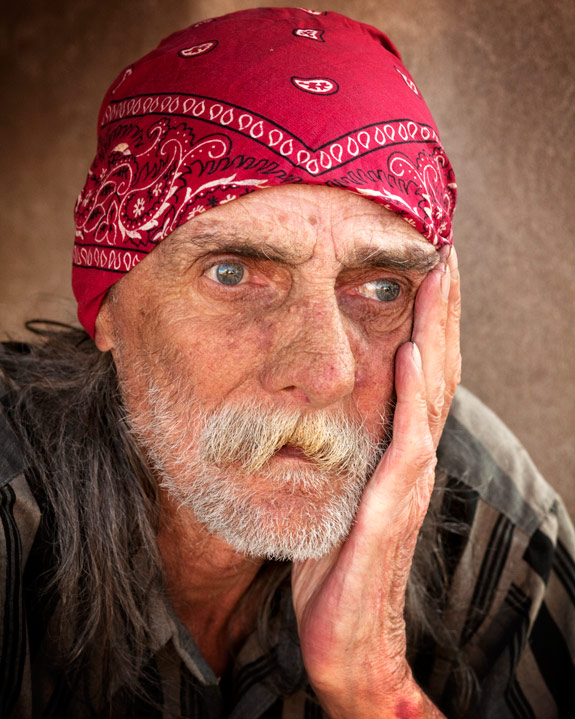
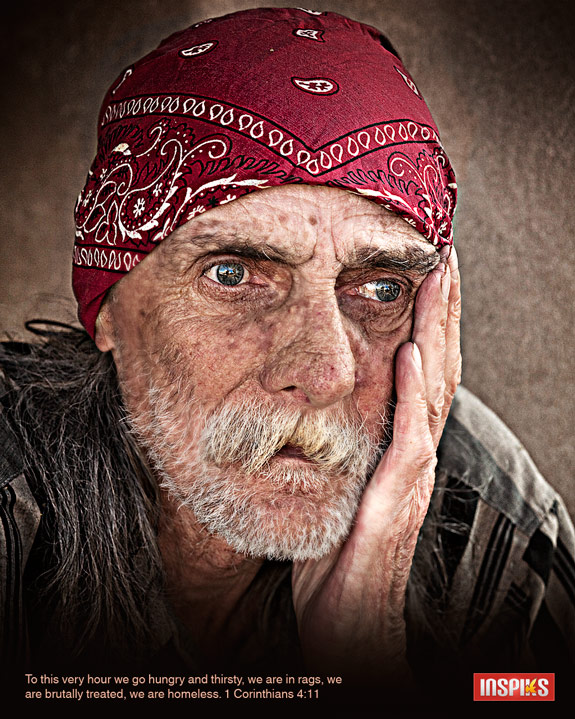
 HDR (High Dynamic Range) allows a greater dynamic range between the lightest and darkest areas of an image than current standard digital imaging techniques or photographic methods. It emphasizes edges, heightens saturation and contrast, sometimes creating a dream-like or surreal image...HDR Photos Examples
Photographers create HDR images by merging several exposures to capture the darks and lights better.
We can mimic an HDR effect with these steps:
Easy photoshop manipulation to create a HDR photo without the actual (time-taking) HDR process.
[ 1 ] We'll call the original layer "ORIGINAL", now duplicate ORIGINAL and place it above that layer. (We'll call this "BLACKWHITE")
[ 2 ] Change the Blending option of BLACKWHITE to "Overlay"
[ 3 ] Go to Image > Adjustements > Desaturate (SHIFT + CTRL + U)
[ 4 ] Now invert BLACKWHITE: Image > Adjustements > Invert (CTRL + I)
[ 5 ] And add a gaussian Blur to it (Filter > Blur > Gaussian Blur) around 40 pixels (This causes the so called 'bleeding' of the edges, tweak the amount to personal likings)
[ 6 ] Now duplicate ORIGINAL and place it above BLACKWHITE, name this layer "LINEAR_LAYER"
[ 7 ] Change the blending type of LINEAR_LAYER to "Linear Light"
[ 8 ] Give LINEAR_LAYER an opacity around 62%. And you're done (For better results, tweak this percentage)
OR Give this Pseudo-HDR tip a try (from http://www.inspiks.com/create-a-pseudo-hdr-image-from-one-photo-in-photoshop/):


[ 1 ] We'll call the original layer "ORIGINAL", now duplicate ORIGINAL and place it above that layer. (We'll call this "BLACKWHITE")
[ 2 ] Change the Blending option of BLACKWHITE to "Overlay"
[ 3 ] Go to Image > Adjustements > Desaturate (SHIFT + CTRL + U)
[ 4 ] Now invert BLACKWHITE: Image > Adjustements > Invert (CTRL + I)
[ 5 ] And add a gaussian Blur to it (Filter > Blur > Gaussian Blur) around 40 pixels (This causes the so called 'bleeding' of the edges, tweak the amount to personal likings)
[ 6 ] Now duplicate ORIGINAL and place it above BLACKWHITE, name this layer "LINEAR_LAYER"
[ 7 ] Change the blending type of LINEAR_LAYER to "Linear Light"
[ 8 ] Give LINEAR_LAYER an opacity around 62%. And you're done (For better results, tweak this percentage)
OR Give this Pseudo-HDR tip a try (from http://www.inspiks.com/create-a-pseudo-hdr-image-from-one-photo-in-photoshop/):


No comments:
Post a Comment
Note: Only a member of this blog may post a comment.